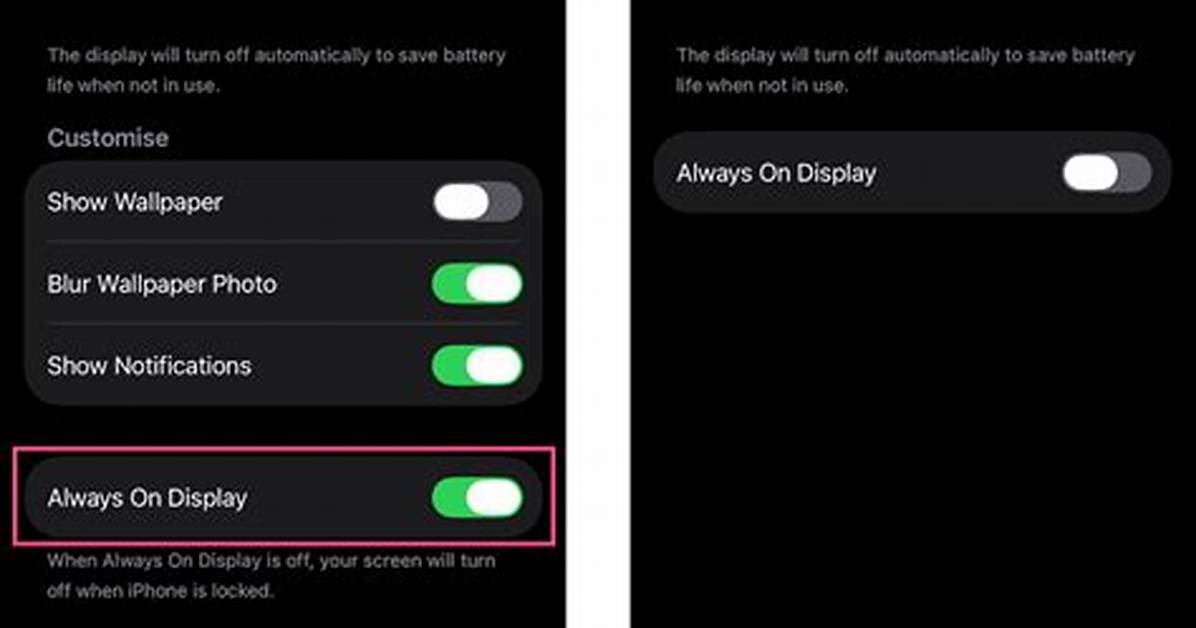
Apple first debuted its always-on display (AOD) for iPhone with the iPhone 14 Pro, and it returns with the iPhone 15 Pro and iPhone 15 Pro Max. Though many people enjoy the AOD on the iPhone, others feel that it consumes enough power to affect the battery drain throughout the day. So, eventually, Apple added a way to turn the AOD off if you don't want to use it.
If you're among those who would prefer to have the always-on display off to help extend your iPhone 15 Pro or iPhone 14 Pro battery life, then keep reading. We'll show you how to turn it off completely.
How to turn off the always-on display on your iPhone 14 Pro or iPhone 15 Pro
Regardless of which version you have, whether it's the iPhone 14 Pro/14 Pro Max or the iPhone 15 Pro/15 Pro Max, the steps for turning off the always-on display are the same. The always-on display will be turned on by default when you first set up your phone, so if you want to turn it off, you can do so as soon as you're able to unlock your device.
Step 1: Open the Settings app on your iPhone.
Step 2: Scroll down and select Display & Brightness.
Step 3: Scroll to the bottom of the next page and choose Always On Display.
Step 4: Switch the toggle next to Always On Display so that it's off.
With that, your iPhone 14 Pro or iPhone 15 Pro will go dark when you lock the screen, just like any other iPhone model. If you want to reactivate the always-on display again, simply repeat the steps above and toggle it back on.
How to tone down the always-on display on your iPhone 14 Pro or iPhone 15 Pro
One of the best aspects of an always-on display on a smartphone is the ability to see the time at a glance without the need to wake up your phone by pressing a button or tapping the screen. However, some would argue that the iPhone's always-on display can be a little bit cluttered compared to those found on most other smartphones.
The good news is that if you prefer this more minimalist look, Apple added two new options in iOS 16.2 that let you tone things down by removing the wallpaper, disabling notifications, or both. This can also help you reduce any possible impact on battery life without turning the always-on display off entirely, although in our testing, we've found those savings to be negligible at best.
Step 1: Open the Settings app on your iPhone.
Step 2: Scroll down and select Display & Brightness.
Step 3: Scroll to the bottom of the next page and choose Always On Display.
Step 4: Switch off Show Wallpaper or Show Notifications, as desired.
Disabling both of these options leaves you with nothing but the clock when your iPhone screen is locked and sleeping, giving you the most minimalist look possible. Leaving wallpaper enabled without notifications offers a similarly clean style that shows only the time and your chosen wallpaper, dimmed and tone-adjusted for the best appearance.
On the other hand, allowing notifications on your always-on display can clutter things up a bit depending on how many you typically get and how you use Focus modes. It will also show the current Focus mode at the bottom when one is enabled.

